Huawei FRP Tools V2.0 – Free Download for Windows | Fastboot & BROM Mode (2027)
Is your Huawei or Honor phone stuck on a Google account screen after a factory reset? This happens because of a security feature called FRP. The Huawei FRP Tools is a free Windows program made to help with this exact problem. It connects to your phone over USB and works through Fastboot mode, BROM mode, or Boot mode, depending on your phone model and chipset.
What Is the Huawei FRP Tools?
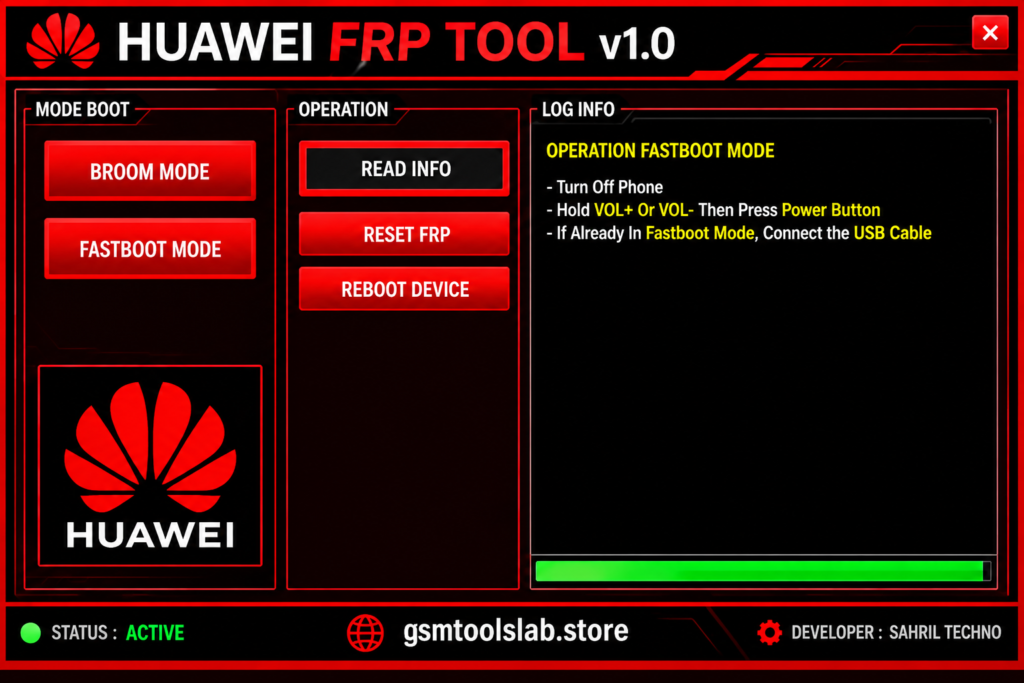
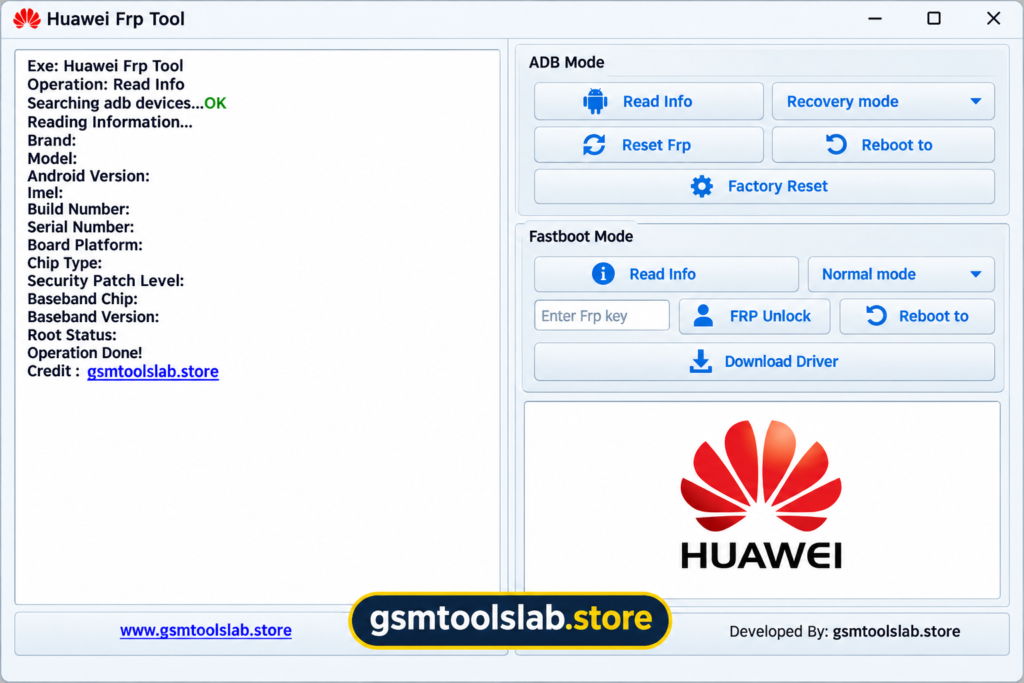
The Huawei FRP Tools is a small Windows utility built to fix FRP lock issues on supported Huawei and Honor Android phones. It also helps when you forget a screen PIN, password, or pattern. The tool talks to your phone through a USB cable using Fastboot mode or BROM mode, which is a low-level MediaTek connection that starts before Android fully loads.
To use the Huawei FRP Tools, you need a Windows PC, a working USB cable, and the correct Huawei USB drivers installed (HiSuite can help with this). Once connected, the tool reads basic device information and offers servicing options such as FRP removal and screen unlock, based on your exact phone model and firmware version.
What is FRP and Why Does It Lock Your Phone?
FRP stands for Factory Reset Protection. Google added this feature to Android starting with Android 5.1 in 2015, specifically to stop thieves from using a stolen phone after a factory reset. Once a Google account is linked to a device, the phone will always ask for that same account’s login after any reset — even if someone wipes the phone completely.
This is a good thing for security, but it can lock out real owners too. Common situations where people need the Huawei FRP Tool include:
- Forgetting the Google account password linked to the phone.
- Buying a secondhand Huawei or Honor phone where the old Google account was never removed.
- A factory reset done incorrectly during a repair.
- A software update or glitch that triggers the FRP screen.
Features of the Huawei FRP Tools
FRP Removal
The core job of the Huawei FRP Tools is removing the FRP lock so the phone can be set up again without the original Google account.
Screen Unlock (PIN, Password, Pattern)
On supported models, the tool can also help when a user forgets their screen lock PIN, password, or pattern.
Fastboot, BROM, and Boot Mode Support
The Huawei FRP Tools works through three main connection types:
- Fastboot mode – a bootloader-level screen that accepts PC commands.
- BROM mode – a deeper, MediaTek-chipset-only mode that runs before Android starts.
- Boot mode – a normal startup connection used for lighter servicing tasks.
Simple, Beginner-Friendly Dashboard
The interface uses plain buttons and short steps, so both new users and experienced repair technicians can operate it without confusion.
Lightweight and Fast
The tool is small and runs smoothly even on older Windows computers with limited RAM.
Wide Model Coverage (With Limits)
The Huawei FRP Tools supports many EMUI-based Huawei and Honor models, such as devices in the Huawei Mate series and similar EMUI generations. Support for newer HarmonyOS phones is limited, since HarmonyOS uses a different system architecture than Android.
Fastboot Mode vs BROM Mode vs Boot Mode
| Mode | What It Does | Best Used For |
|---|---|---|
| Fastboot Mode | Bootloader screen that receives commands from a PC | Phones that can still boot into the bootloader |
| BROM Mode | Low-level MediaTek mode active before Android loads | MediaTek-chipset Huawei/Honor phones needing deeper access |
| Boot Mode | Standard startup connection | Lighter servicing tasks on supported models |
Huawei FRP Tools – System Requirements
- Windows 7, 8, 10, or 11 (32-bit or 64-bit)
- At least 2 GB of RAM
- A free USB port and a good-quality data cable
- Huawei USB drivers (and HiSuite, if your model needs it)
- Phone battery charged to at least 50%, for safety during the process
- Updated antivirus software, since third-party tool downloads always carry some risk
Download Information
| Detail | Value |
|---|---|
| Tool Name | Huawei FRP Tools |
| Version | V2.0 |
| File Size | 60 MB |
| File Format | ZIP/RAR |
| Platform | Windows (32-bit/64-bit) |
| Password | None |
| Modes Supported | Fastboot, Boot, BROM |
How to Download and Install the Huawei FRP Tools
- Download the Huawei FRP Tools only or from a trusted source.
- Scan the downloaded file with updated antivirus software before opening it.
- Extract all files to a folder on your Desktop.
- Install the Huawei USB drivers (and HiSuite, if required for your model).
- Open the extracted Huawei FRP Tool program.
- Right-click the tool and choose “Run as administrator” for full functionality.
How to Use the Huawei FRP Tools – Step-by-Step
- Connect your Huawei or Honor phone to the PC using a working USB cable.
- Put the phone into the mode your model needs — Fastboot, Boot, or BROM.
- Open the Huawei FRP Tool and wait for it to detect the connected device.
- Select your exact phone model from the list shown in the tool.
- Choose the FRP removal option (or the screen unlock option, if that’s your issue).
- Follow the on-screen prompts and wait for the process to finish.
- Let the phone restart on its own, then complete the normal setup screen.
Supported Huawei and Honor Devices
Compatibility with the Huawei FRP Tool depends on four things: the device model, the chipset (mostly MediaTek-based models work best with BROM mode), the EMUI version, and the current security patch level. Older EMUI-based Huawei and Honor phones tend to have the best success rate. Newer HarmonyOS devices are only partially supported because HarmonyOS does not share the same low-level access points as Android.
Pros and Cons
| Pros | Cons |
|---|---|
| Free to download and use | No macOS version available |
| Simple, beginner-friendly interface | Limited support for HarmonyOS devices |
| Supports Fastboot, Boot, and BROM modes | Success depends heavily on model and firmware |
| Lightweight — runs on older PCs | Newer security patches may block the process |
| Useful for repair technicians servicing multiple models | Requires correct USB drivers to work properly |
Huawei FRP Tools vs Other FRP Bypass Methods
There is more than one way to deal with an FRP lock on Huawei devices:
- Huawei FRP Tools – free, PC-based, works through Fastboot/BROM/Boot mode; best for EMUI devices.
- Paid credit-based services (like DC-Unlocker) – work over Fastboot mode too, but usually stop working once a phone runs a newer Android version with the latest security patch, and they don’t unlock the bootloader.
- General Android unlocker software – broader brand support (Samsung, Motorola, OnePlus, Huawei) with a guided wizard interface, often at a one-time purchase cost.
- On-device tricks (no PC needed) – methods using accessibility features or APK shortcut makers; these can work on some older models but have a lower success rate and need more technical steps.
For most Huawei and Honor repair jobs on older EMUI firmware, the free Huawei FRP Tool remains the simplest starting point before trying a paid alternative.
Conclusion
The Huawei FRP Tools V2.0 is a free, lightweight Windows program built to solve FRP lock and screen lock problems on supported Huawei and Honor phones. It works through Fastboot, Boot, and BROM modes, and its simple dashboard makes it usable for both beginners and repair technicians. Just remember: compatibility depends on your device’s model, chipset, EMUI version, and security patch, so always confirm support for your exact phone before starting, download only from a trusted source, and use the tool responsibly on a device you own.
Also Raed: 3uTools V9.12 Download Latest Version
FAQ’s
What is the Huawei FRP Tools?
It is a free Windows program that helps remove the FRP (Factory Reset Protection) lock and fix screen lock issues on supported Huawei and Honor phones, using Fastboot, Boot, or BROM mode.
Is the Huawei FRP Tools free to download?
Yes, the V2.0 version is distributed as a free download. Some similarly named tools from other developers may require a paid key, so always check the source before downloading.
Does the Huawei FRP Tools work on every Huawei model?
No. Support changes based on the phone’s model, chipset, EMUI version, firmware, and current security patch. Older EMUI-based models generally work best.
Does the Huawei FRP Tools work on HarmonyOS phones?
Support for HarmonyOS devices is limited, since HarmonyOS does not use the same low-level Android access points that the tool relies on.
What is the FRP code for Huawei?
There is no single universal FRP code for Huawei phones. If the lock appears after a reset, the safest first step is signing in with the previously used Google account, or contacting official Huawei support.
Will I lose my data when I use the Huawei FRP Tools?
A factory reset already erases phone data before FRP activates, so most FRP removal processes work on a phone that has no data left to protect. If you’re doing a screen-lock unlock instead, back up first, since results can vary by model.
Is it legal to use the Huawei FRP Tools?
FRP removal tools are legal to use on a device you own or are authorized to service, such as your own phone or a customer’s phone at a repair shop. Using them to unlock a stolen or unauthorized device is not legal and goes against the intended, responsible use of this software.