Phantom Tool V1.0 Download Latest Version for Windows [2027]
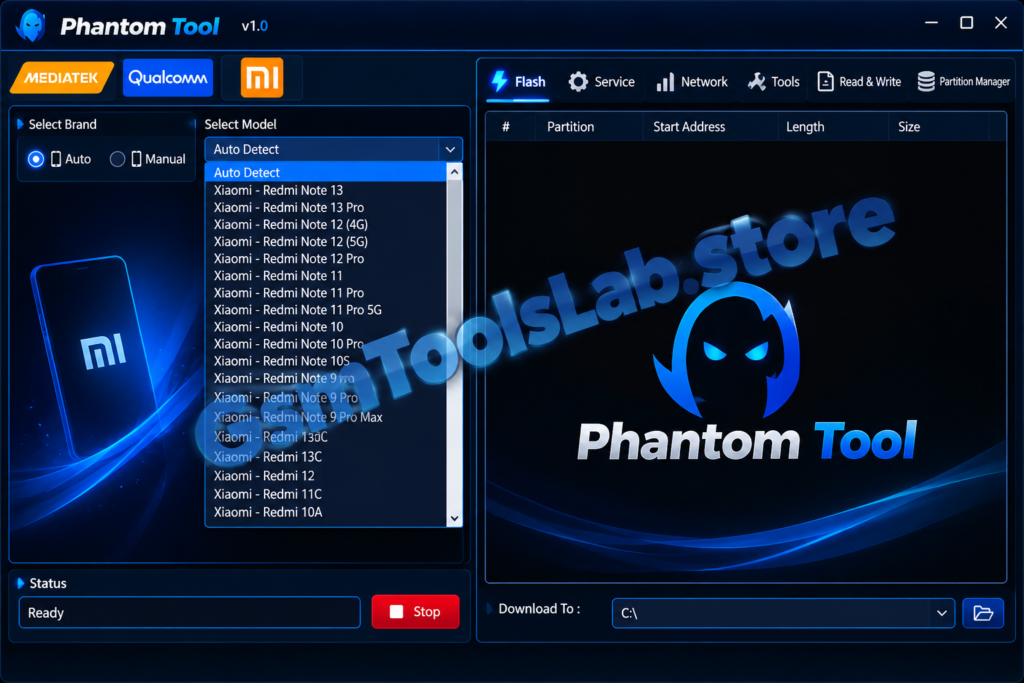
Android smartphone software problems can make everyday device servicing difficult, especially when dealing with firmware errors, boot issues, partition problems, or connection failures. Phantom Tool is a Windows-based phone servicing utility designed to help technicians work with compatible MediaTek (MTK) and Qualcomm devices through different servicing modes.
What Is Phantom Tool?
Phantom Tool is a Windows phone repair and maintenance application developed for selected Android smartphones powered by MediaTek and Qualcomm chipsets. It combines different servicing functions through MTKClient and Qualcomm EDLClient support.
The software is intended to help technicians perform supported firmware-related operations, inspect device partitions, manage selected system components, and troubleshoot certain software problems. Its available functions depend on the smartphone model, chipset, firmware version, connection mode, and authorization requirements.
Key Features of Phantom Tool
Qualcomm EDL Support
The Qualcomm module uses EDLClient to communicate with compatible Snapdragon-powered smartphones in Emergency Download Mode. Depending on the device and supported configuration, technicians can access selected firmware and partition servicing functions.
MediaTek (MTK) Flashing
Phantom Tool integrates MTKClient for selected MediaTek-powered Android devices. This provides access to supported Preloader and BROM communication modes for firmware and device maintenance operations.
Firmware Flashing and Repair
The firmware-related functions are intended to help technicians address certain software problems, including failed updates, boot issues, and corrupted system components on compatible devices.
FRP Servicing
Factory Reset Protection is an Android security feature that helps protect a device after a factory reset. Phantom Tool advertises FRP-related servicing functions for selected compatible devices.
Bootloader Unlock and Relock
Bootloader management is useful for certain advanced Android maintenance and development tasks. Phantom Tool advertises unlock and relock functions for supported devices.
IMEI and EFS Servicing
The tool lists selected IMEI and EFS-related servicing functions for compatible Qualcomm and MediaTek devices. These options may be useful when diagnosing or restoring certain network-related information.
EXT4 Partition Manager
The EXT4 partition manager provides access to supported Linux-based Android partitions. Depending on device compatibility, technicians may be able to inspect, read, write, dump, or format selected partitions.
Partition management is an advanced operation. Selecting or modifying an incorrect partition can cause data loss, boot loops, or an unusable device. Always create an appropriate backup before making changes.
RPMB V5/V6 Support
Phantom Tool advertises support for RPMB V5 and V6 protocols. RPMB is a protected storage area used by supported devices for security-related data and operations.
The availability of RPMB functions depends on the chipset, hardware configuration, and supported protocol. These operations should only be performed by experienced technicians who understand the risks involved.
Read and Write Operations
The software includes advanced read/write capabilities for supported device information and partitions. These functions can assist with certain diagnostic, backup, and maintenance workflows.
Before writing data, verify the target partition and confirm that the file is compatible with the device. Incorrect write operations can damage the phone’s software configuration.
Pattern and Screen Lock Servicing
The official feature list also mentions pattern and screen-lock servicing for selected devices. Actual availability depends on the supported model, security configuration, and connection mode.
Always obtain the device owner’s permission before performing any lock-related maintenance.
Network Unlock Features
The software advertises network-unlock functionality for compatible devices. Carrier restrictions and network configurations differ between manufacturers and regions, so support should be checked before attempting any operation.
Only perform network-related servicing when legally permitted and authorized by the device owner and carrier.
What’s New in Phantom Tool V1.0?
Phantom Tool v1.0 is presented as a phone servicing package combining MediaTek and Qualcomm capabilities. Its advertised highlights include:
- MTKClient Integration: MediaTek communication and servicing support.
- Qualcomm EDLClient: Emergency Download Mode support for compatible Qualcomm devices.
- Expanded Device Coverage: Advertised support for more than 1,800 MTK and Qualcomm devices.
- RPMB V5/V6 Protocols: Selected protected-storage servicing capabilities.
- EXT4 Partition Manager: Partition inspection and management options.
- Firmware Operations: Supported firmware and device maintenance functions.
- IMEI and EFS Functions: Selected network-information servicing and backup options.
- Bootloader Management: Unlock and relock options for compatible devices.
- Screen Lock Servicing: Advertised pattern, PIN, and password-related functions.
How to Download Phantom Tool?
Follow these steps to find the available release:
- Visit the official Phantom Tool website.
- Open the download section.
- Check the available Phantom Tool version and package details.
- Review the subscription and activation requirements before downloading.
- Select the download option provided by the publisher.
- Wait for the package to finish downloading.
- Scan the downloaded file with a trusted security application before opening it.
- Keep the original installer and any supplied instructions available.
Download the software from a trusted publisher or authorized distributor. Avoid modified packages advertised as fully unlocked or pre-activated unless their authenticity can be independently verified.
How to Install Phantom Tool on Windows?
- Check that your computer meets the requirements for the available release.
- Extract the downloaded archive if it is compressed.
- Install the required Android USB and chipset drivers.
- Open the setup file supplied by the publisher.
- Follow the installation instructions displayed on the screen.
- Complete any required account registration or subscription activation.
- Launch the application after installation.
- Confirm that the software opens correctly before connecting a device.
How to Use Phantom Tool?
- Back up important device data whenever possible.
- Identify the exact phone model and chipset.
- Install the appropriate USB drivers on your Windows computer.
- Open Phantom Tool and complete any required sign-in or activation.
- Select the relevant Qualcomm or MediaTek module.
- Connect the phone using the connection mode supported by the selected device.
- Confirm that the software detects the device correctly.
- Select only a function documented for that model.
- Read all warnings and confirm the operation’s effect on stored data.
- Wait for the process to finish before disconnecting the phone.
System Requirements
| Requirement | Details |
|---|---|
| Software Name | Phantom Tool |
| Version | v1.0 |
| Software Type | Android Phone Servicing Utility |
| Operating System | Windows 7 / 8 / 10 / 11 |
| Processor | Compatible Windows-supported CPU |
| RAM | Check the publisher’s current requirements |
| Architecture | Confirm compatibility with the supplied package |
| USB Connection | Working USB port and data cable |
| USB Drivers | Compatible MediaTek and Qualcomm drivers |
| Internet Connection | May be required for activation and online services |
| Permissions | Administrator access may be required |
| Device Support | Advertised 1,800+ MTK and Qualcomm devices |
Download Information
| Download Detail | Information |
|---|---|
| Tool Name | Phantom Tool |
| Version | v1.0 |
| Platform | Windows PC |
| Main Chipset Support | MediaTek and Qualcomm |
| Integrated Components | MTKClient and EDLClient |
| Advertised Device Support | 1,800+ devices |
| Package Size | 12 MB (official website listing) |
| Operating Systems | Windows 7 / 8 / 10 / 11 |
| Pricing | Subscription plans listed by publisher |
Pros and Cons
| Pros | Cons |
|---|---|
| Combines MTK and Qualcomm servicing options. | Advanced operations require technical experience. |
| Integrates MTKClient and EDLClient. | Not all functions support every device. |
| Advertises support for 1,800+ devices. | Actual compatibility must be checked model by model. |
| Includes EXT4 partition management. | Incorrect partition changes can damage device software. |
| Advertises RPMB V5/V6 support. | Some operations may require authorization or additional files. |
| Provides firmware and device-maintenance options. | Full access may require a subscription. |
Also Read: AMT Tool v1.3.6.5 Download Latest Version for Windows [2027]
Conclusion
Phantom Tool is a Windows-based Android servicing utility designed for technicians working with compatible MediaTek and Qualcomm smartphones. Its combination of MTKClient, EDLClient, firmware operations, partition management, RPMB protocols, and selected device-maintenance functions makes it a multi-purpose option for supported repair workflows.
Before downloading, check the current version, subscription requirements, and supported-device information on the publisher’s website. Always verify the exact model and use compatible files to reduce the risk of data loss or software damage.
Frequently Asked Questions
What is Phantom Tool used for?
Phantom Tool is used for selected Android phone servicing tasks, including firmware operations, partition management, device maintenance, and supported Qualcomm and MediaTek repair functions.
Does Phantom Tool support MediaTek devices?
Yes. The software advertises MediaTek support through MTKClient, including selected Preloader and BROM-related servicing functions. Actual compatibility depends on the device and chipset.
Does Phantom Tool support Qualcomm devices?
Yes. It advertises Qualcomm support through EDLClient for compatible devices. Some operations may require suitable programmers, drivers, or authorization.
How many devices does Phantom Tool support?
The publisher advertises support for more than 1,800 MTK and Qualcomm devices. Check the supported-device information to confirm whether your exact model and required operation are included.
Is Phantom Tool free?
The official website lists subscription plans for full tool access. Therefore, users should check the current pricing and access conditions instead of assuming that every feature is free.
Which Windows versions support Phantom Tool?
The publisher lists Windows 7, Windows 8, Windows 10, and Windows 11. Confirm the requirements for the specific package before installation.
Does This Tool support firmware flashing?
The publisher advertises firmware flashing and related maintenance functions for compatible devices. Always verify the device model and firmware package before starting an operation.
What are MTKClient and EDLClient?
MTKClient is used for supported MediaTek device communication and servicing. EDLClient provides access to compatible Qualcomm devices through Emergency Download Mode.
Can Phantom manage Android partitions?
Yes. Its advertised features include an EXT4 partition manager and advanced read/write operations. These functions should be used carefully because incorrect partition changes can cause data loss or boot problems.
Is THE Tool suitable for beginners?
Some basic functions may be accessible through its interface, but advanced firmware and partition operations require technical knowledge. Beginners should understand the device and procedure before attempting repairs.