Fastboot Flash Tool V1.0.1.2 Download Free Latest Version [2026]
Is your Android phone stuck in Fastboot Mode, facing a firmware error, or unable to start after an update? Fastboot Flash Tool V1.0.1.2 is a Windows utility designed to help with Android firmware flashing and software repair on compatible devices. Its listed functions include bootloader communication, partition flashing, firmware restoration, Fastboot error troubleshooting, and selected Scatter, BAT, and Fastboot-to-EDL options. Available features depend on the tool version, device model, chipset, and firmware package.
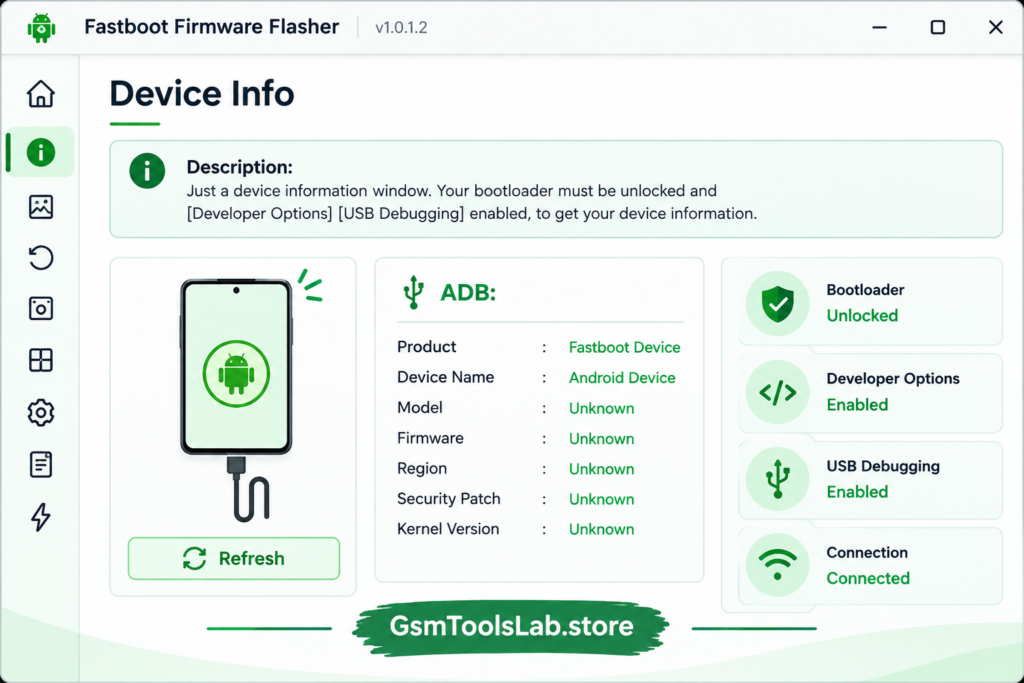
What Is Fastboot Flash Tool?
Fastboot Flash Tool is a Windows-based Android servicing utility that works with compatible devices through Fastboot Mode. It helps users install firmware images, restore supported system files, and troubleshoot certain software problems. Fastboot communicates with the Android bootloader, allowing compatible images to be flashed to supported partitions. The tool may also provide additional options, such as partition selection, BAT scripts, Scatter files, and Fastboot-to-EDL, depending on its build and device support.
Key Features of Fastboot Flash Tool
Fastboot Firmware Flashing
Fastboot Flash Tool helps flash compatible firmware images when an Android device is connected in Fastboot Mode. This can be useful for reinstalling system software, restoring supported firmware components, and addressing certain software-related problems.
Multi-Brand Support
The tool is described as supporting compatible Android devices from brands such as Xiaomi, Redmi, OnePlus, Motorola, Nokia, Huawei, and Oppo. However, support is not universal. The available operations depend on the device’s Fastboot implementation, model, and firmware.
Partition-Specific Flashing
Partition selection can help technicians work with individual firmware components instead of flashing a complete package. Depending on the device and supported commands, these components may include boot, recovery, system, and vendor images. The correct partition layout must be checked before flashing.
Stock Firmware Restoration
Incorrect updates and damaged system files can prevent an Android phone from starting normally. Flashing compatible stock firmware may help restore the original software. The firmware must match the exact device model and variant, and some restoration procedures can erase user data.
Boot Loop and Soft Brick Repair
A phone that repeatedly restarts or remains stuck on its startup screen may have a software-related problem. Fastboot firmware flashing can help in some cases by restoring compatible system images. It will not repair physical damage, defective storage, or other hardware faults.
Fastboot Error Troubleshooting
Fastboot operations can fail because of incompatible firmware, USB connection problems, missing drivers, locked bootloaders, or unsupported commands. The tool is listed with Fastboot error-fixing options that may help with supported problems, although not every error can be resolved through the same method.
Fastboot-to-EDL Support
Fastboot-to-EDL is listed as a feature for compatible devices. EDL stands for Emergency Download Mode and is associated with certain Qualcomm-based Android devices. Availability depends on the device’s hardware, software state, security restrictions, and the tool’s supported functions.
Scatter File Support
Scatter files contain partition information used by certain MediaTek firmware packages and servicing tools. Selected versions of Fastboot Flash Tool are reported to offer Scatter file support. This function should only be used when the tool and firmware package explicitly support the target device and flashing method.
BAT File Support
BAT files are Windows batch scripts that can run a sequence of supported commands. The tool is reported to support compatible BAT-based flashing workflows, which may reduce repetitive manual steps. Only use scripts from a trusted source and review their contents before running them.
Simple Interface and USB Connectivity
A graphical interface can make firmware-related options easier to access than entering every command manually. The tool runs on a Windows computer and communicates with a compatible phone through USB. Correct drivers, a reliable cable, and the appropriate device mode are important for successful detection.
No Dedicated Box or Dongle Required
The tool is designed for computer-based servicing and does not require a separate hardware servicing box or dongle for its basic supported functions. However, some devices and advanced recovery procedures may require additional drivers, authorized access, specific firmware files, or other tools.
System Requirements
| Requirement | Details |
|---|---|
| Operating System | Windows 7, 8, 10, or 11; compatibility may vary |
| Processor | Intel or AMD dual-core processor or better |
| RAM | 4 GB recommended |
| Storage | At least 500 MB of free space |
| USB Port | Working USB port |
| USB Cable | Compatible data-transfer cable |
| Drivers | Appropriate Android USB and Fastboot drivers |
| Device Mode | Fastboot Mode for supported operations |
| Firmware | Correct firmware files for the target device |
Download Information
| Information | Details |
|---|---|
| Tool Name | Fastboot Flash Tool |
| Version | V1.0.1.2 |
| Platform | Windows |
| File Type | Compressed archive or setup package, depending on the supplied download |
| Reported File Size | Approximately 25.3 MB; verify the downloaded file |
| Main Purpose | Android firmware flashing and software servicing |
| Connection | USB |
| Main Modes | Fastboot; additional modes depend on supported functions |
How to Download and Install Fastboot Flash Tool V1.0.1.2
- Open the download page on GSMToolsLab and download the Fastboot Flash Tool V1.0.1.2 package.
- Scan the downloaded file with your security software before opening it.
- If the file is compressed, extract it using a compatible utility such as 7-Zip or WinRAR.
- Install the appropriate Android USB and Fastboot drivers on your Windows computer.
- Open the extracted folder and check the included files and instructions.
- Run the application as Administrator if the package requires it and you trust the source.
- Start the phone in Fastboot Mode using the procedure supported by its manufacturer.
- Connect the phone with a reliable USB data cable and confirm that the tool detects it.
- Select only the firmware files or operations supported by your device and tool version.
- Review the selected files before starting. Do not disconnect the phone while a flashing operation is in progress.
Always back up important data first. Do not flash firmware intended for a different model or variant, and do not disable antivirus protection simply to run an unknown file.
Pros & Cons
| Pros | Cons |
|---|---|
| Provides a graphical interface for supported Fastboot operations | Device and feature compatibility varies |
| Helps flash compatible firmware images | Incorrect firmware may cause serious software problems |
| Can support partition-level flashing | Some operations require technical knowledge |
| May help restore devices with software-related boot problems | Hardware faults require different repair methods |
| Reported Scatter and BAT file options in supported builds | These features are not guaranteed in every version |
| Includes a listed Fastboot-to-EDL option for compatible devices | EDL access depends on the device and security restrictions |
| Basic supported operations do not require a dedicated box or dongle | USB driver or connection problems can prevent detection |
| Useful for Android technicians and advanced users | Flashing may erase personal data or make the device unbootable |
Also Read: SamFw FRP Tool v6.0.1 Download Free Latest Version [2026]
Conclusion
Fastboot Flash Tool V1.0.1.2 is intended for Android firmware flashing and software servicing on compatible devices. Its reported options include Fastboot communication, partition flashing, firmware restoration, and selected Scatter, BAT, and EDL-related functions. Before using it, verify device compatibility, check the firmware files, and back up important data. Results depend on the phone, bootloader state, and available tool features.
FAQ’s
What is Fastboot Flash Tool used for?
It is designed for supported Android servicing tasks, including firmware flashing, system restoration, and troubleshooting certain Fastboot-related software problems.
Can Fastboot Flash Tool fix a phone stuck in a boot loop?
It may help when the cause is damaged or incompatible software and the device can enter a supported flashing mode. Hardware-related boot failures need separate diagnosis.
Does Fastboot Flash Tool support Xiaomi and Redmi phones?
The tool is listed as supporting selected Xiaomi and Redmi devices. Actual compatibility depends on the model, firmware, bootloader state, and available tool functions.
What is Fastboot-to-EDL?
Fastboot-to-EDL is a listed option intended for compatible devices that can enter Qualcomm Emergency Download Mode. It is not supported on every Android phone.
Does Fastboot Flash Tool support Scatter files?
Scatter file support is reported for selected versions and compatible MediaTek workflows. Confirm that the particular build supports the device and firmware package before using this option.
What is a BAT file in firmware flashing?
A BAT file is a Windows batch script that can run a sequence of commands. Use only scripts that are compatible with your device and obtained from a trusted source.