
AMT Tool v1.3.6.5 Download Latest Version for Windows [2027]
Android phone servicing can become challenging when a device develops software errors, boot problems, connection issues, or account-verification restrictions. AMT Tool brings multiple Android maintenance functions into one Windows application, helping mobile technicians work with compatible smartphones through different connection modes. Depending on the device and available authorization, the software offers firmware flashing, factory reset, FRP servicing, device information, and other repair options.
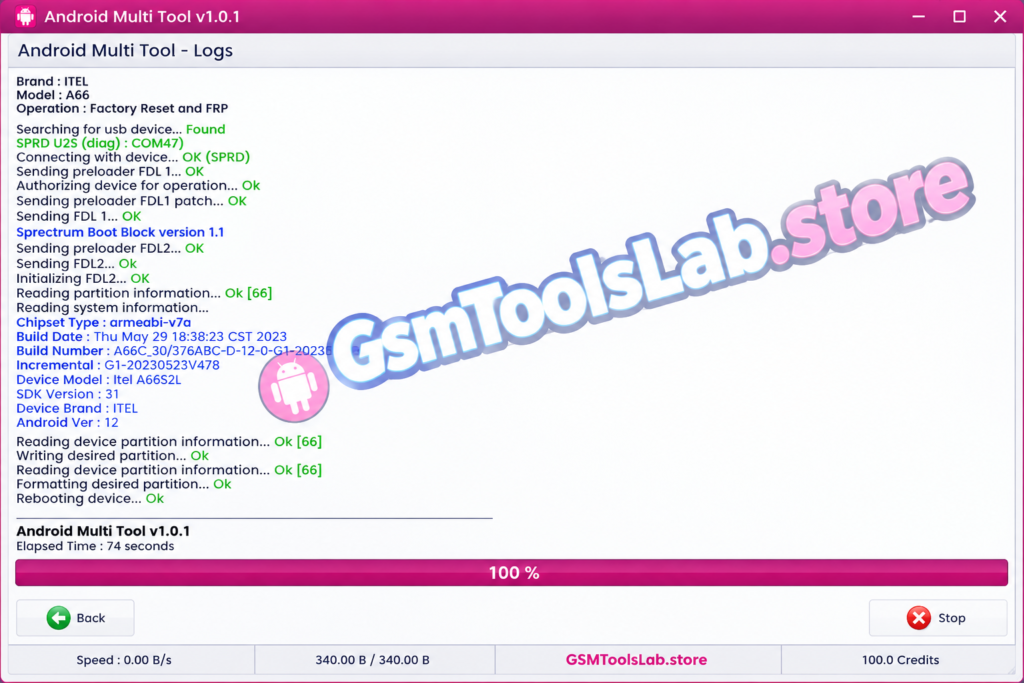
What Is AMT Tool?
AMT Tool, also known as Android Multi Tool, is a Windows-based Android servicing utility designed for mobile repair technicians and experienced users. It combines different device-management and software-maintenance functions in one interface, reducing the need to switch between multiple utilities for every supported repair task.
The software supports selected devices using Qualcomm, MediaTek (MTK), and Unisoc (SPD) chipsets. Depending on the model and connection mode, technicians may use the available functions for firmware installation, factory reset, FRP-related servicing, device information, reboot operations, and partition management.
Key Features of AMT Tool
Screen Lock Servicing
The screen-lock servicing options in AMT Tool are designed for selected compatible devices. Available operations depend on the phone model, operating system, security configuration, and supported connection method. Before attempting any lock-related service, verify device ownership and make sure the selected procedure is appropriate for that model.
Factory Reset and Data Wipe
The factory reset function helps restore supported Android devices to their default state by removing user data. This can be useful when troubleshooting certain software problems or preparing an authorized device for reuse. A reset may permanently erase photos, applications, documents, and other personal files, so create a backup whenever possible.
FRP Servicing
Factory Reset Protection (FRP) is an Android security feature that helps protect a device after a factory reset. AMT Tool provides FRP-related servicing options for selected supported models. Availability varies according to the device, Android release, security patch, and authorization method. Use these functions only on devices you own or are authorized to service.
ADB Commands and Device Information
Android Debug Bridge (ADB) allows a computer to communicate with an Android device when the required connection settings and permissions are available. The software can use ADB-related functions for supported device-management tasks and information checks. ADB operations commonly require USB debugging to be enabled and the computer to be authorized on the phone.
Fastboot and Reboot Options
Fastboot provides access to supported maintenance operations before the Android operating system fully starts. Depending on the device, the available options may include restarting into bootloader or recovery mode and performing other supported maintenance tasks. Fastboot availability and commands differ across manufacturers, so confirm compatibility before proceeding.
Qualcomm Device Servicing
The Qualcomm module provides selected maintenance functions for compatible Snapdragon-powered smartphones. Depending on the device and available authorization, these may include EDL-related operations, firmware procedures, reset functions, or partition management. Certain tasks require appropriate Firehose files, drivers, and a supported connection mode.
MediaTek (MTK) Support
The MediaTek module is intended for compatible MTK-powered Android devices. Depending on the supported model, it may provide BROM or Preloader-based servicing, firmware-related operations, reset functions, and other maintenance options. Required Download Agent files, authentication services, and connection procedures can vary between devices.
Unisoc (SPD) Compatibility
AMT Tool also lists support for selected Unisoc devices. Available functions depend on the installed release and supported model. Technicians should check the relevant device profile and required drivers before attempting firmware-related operations, as using an incompatible package can cause boot or software problems.
Bootloader and Partition Management
Selected devices may offer bootloader-related operations or partition-management options. These functions are intended for advanced servicing tasks and require accurate identification of the device and its partitions. Changing or erasing the wrong partition can result in data loss or an unbootable phone, so use only documented, compatible procedures.
Multi-Brand Android Support
The software supports selected smartphones from brands such as Samsung, Xiaomi, Redmi, Vivo, OPPO, Realme, Tecno, Infinix, itel, and other manufacturers. However, brand-level support does not mean every model or feature is available. Check the exact model number and the supported operation before beginning a repair.
What’s New in AMT Tool?
Android Multi Tool has received updates that expand compatibility with selected Nothing and Motorola smartphones. The changelogs below describe the features reported for AMT v1.3.5.2 and v1.3.5.0. These are historical release notes, not a claim that the same features were first introduced in v1.3.6.5.
AMT Tool v1.3.5.2 Changelog — Nothing Phone Support
Newly supported Nothing and CMF models:
| Device | Codename | Connection Mode |
| Nothing CMF Phone 1 | Tetris | Preloader |
| Nothing CMF Phone 2 Pro | Galaga | Preloader |
| Nothing Phone 1 | Spacewar | EDL |
| Nothing Phone 2 | Pong | EDL |
| Nothing Phone 2A | Pacman | Preloader |
| Nothing Phone 3 | Metroid | EDL |
| Nothing Phone 3A | Asteroids | EDL |
| Nothing 3A Lite | Galaxian | Preloader and BROM |
| Nothing Phone 3A Pro | Asteroids | EDL |
AMT Tool v1.3.5.0 Changelog — Motorola Security Support
| Motorola Model | Model Number |
| Motorola Moto E15 | XT2523 |
| Motorola Moto G05 | XT2523 |
| Motorola Moto G15 | XT2521 |
| Motorola Moto G15 Power | XT2521 |
| Motorola Moto G06 | XT2535 |
| Motorola Moto G06 Power | XT2535 |
| Motorola Moto G17 | XT2623 |
| Motorola Moto G17 Power | XT2623 |
Common Problems and Solutions
| Common Problem | Possible Cause | Suggested Solution |
| Download error | Temporary website or network issue | Reopen the official website and try again later if necessary. |
| Login or activation error | Account, license, or server issue | Check the account status and official service information. |
| Device not detected | Missing drivers, faulty cable, or incorrect mode | Install compatible drivers and test another data cable or USB port. |
| ADB connection failure | USB debugging is disabled or authorization is missing | Enable USB debugging where appropriate and approve the computer connection. |
| Fastboot device not detected | Incorrect driver or connection mode | Install the correct driver and confirm the phone is in Fastboot mode. |
| Flashing operation fails | Wrong firmware, unsupported model, or connection interruption | Verify the model and firmware package, then follow the supported procedure. |
| Online service unavailable | Authorization server is offline or experiencing an issue | Check the official server status and wait until the required service is available. |
| Operation fails on a newer phone | Security restrictions or unsupported firmware | Check the latest supported-device information before retrying. |
Repeatedly retrying an operation while its required authorization service is unavailable may not solve the problem. Verify the cause first rather than assuming every failure is caused by the software installation.
How to Download Android Multi
- Visit the official Android Multi Tool website.
- Check the currently listed version and available download package.
- Review the system requirements, supported devices, and activation conditions.
- Select the appropriate download option provided by the publisher.
- Wait for the download to finish completely.
- If the package is compressed, extract it with a trusted archive utility such as 7-Zip.
- Check the package contents and any installation instructions before running the application.
How to Install Android Multi Tool
- Confirm that your Windows computer meets the requirements for the downloaded release.
- Extract the archive if the publisher supplies a compressed package.
- Install the appropriate Android USB, MediaTek, or Qualcomm drivers as needed.
- Run the provided installer or application according to the official instructions.
- Complete any required account sign-in or activation procedure.
- Open the software and confirm that it starts without errors.
- Connect a compatible Android device when required and check whether it is detected correctly.
How to Use AMT Tool
- Back up important data and verify that you have permission to service the device.
- Identify the exact manufacturer, model number, chipset, and software version.
- Install the required drivers and prepare a reliable USB connection.
- Start AMT Tool and select the relevant device or servicing module.
- Choose a function supported by the selected model.
- Read the instructions and confirm any warnings about data loss or authorization.
- Follow the on-screen procedure without disconnecting the phone during an active operation.
- Check the result and restart the device if the procedure requires it.
System Requirements
| Requirement | Details |
| Software Name | Android Multi Tool (AMT Tool) |
| Version Referenced | v1.3.6.5 |
| Software Type | Android servicing and repair utility |
| Operating System | Check the official release requirements |
| Processor | Compatible Intel or AMD processor |
| RAM | 4 GB recommended as a general baseline |
| Storage | Keep at least 500 MB free as a general allowance |
| USB Drivers | Compatible Android and chipset drivers |
| USB Connection | Working data-capable cable and port |
| Internet | Required for downloads and server-dependent services |
| Activation | May be required for certain features |
| File Size | Check the actual package size on the official download page |
Download Information
| Download Detail | Information |
| Tool Name | Android Multi Tool |
| Common Name | AMT Tool |
| Version | v1.3.6.5 |
| Platform | Windows PC |
| Package Type | Use the format provided by the official website |
| Download Size | Verify on the official download page |
| Activation | Check current license terms |
| Device Support | Depends on model, chipset, and available functions |
Pros and Cons
| Pros | Cons |
| Combines several Android servicing functions in one Windows application. | Not every feature works on every Android device. |
| Supports selected Qualcomm, MediaTek, and Unisoc devices. | Some operations depend on online authorization or server availability. |
| Provides ADB and Fastboot-related device-management options. | ADB operations may require USB debugging and computer authorization. |
| Offers selected reset, firmware, and device-maintenance functions. | Incorrect firmware or partition operations can cause data loss or software damage. |
| Supports selected models from multiple Android brands. | Brand support does not guarantee support for every model. |
| Provides access to different servicing modules through one interface. | Certain features may require activation, credits, or technical experience. |
Also Read: Easy Multi Tool v1.2.0 Download the Latest Version for Windows [2027]
Conclusion
AMT Tool is a Windows-based Android servicing utility that combines selected device-management, reset, firmware, and diagnostic functions. Its support for Qualcomm, MediaTek, Unisoc, ADB, and Fastboot-related workflows can be useful for technicians working with compatible smartphones. Before downloading, verify the current release, licensing requirements, server status, and supported-device list. Careful preparation and a reliable firmware source help reduce the risk of failed operations and data loss.
FAQ’s
What is AMT Tool used for?
AMT Tool is used for supported Android servicing tasks, including selected firmware operations, factory reset, device information, FRP-related servicing, and maintenance functions.
Is AMT free to use?
Not necessarily. Some features may require an active license, account activation, or service credits. Check the current terms on the official website before using paid or server-dependent functions.
Which chipsets does AMT Tool support?
The software lists support for selected Qualcomm, MediaTek, and Unisoc devices. The availability of individual functions depends on the exact model and installed version.
Does AMT setup support Windows 11?
Check the requirements for the current release to confirm Windows 11 compatibility. Appropriate drivers and required system components must also work correctly.
Does The Tool require USB debugging?
ADB-based functions generally require USB debugging and authorization on the phone. Fastboot operations use a different connection mode and may not require Android USB debugging.
Why is my phone not detected by AMT Software?
Common causes include missing drivers, a faulty USB cable, an incorrect connection mode, or missing permissions. Check Device Manager, install suitable drivers, and try another data-capable USB port or cable.
One Comment