TSM Tool Pro v2.4.1 Download Free Setup [2027]
Android software problems such as FRP locks, firmware errors, device detection issues, and management restrictions can make smartphone servicing difficult. TSM Tool Pro is a Windows-based mobile servicing utility designed to help technicians work with supported Android devices through different connection methods, including ADB, Fastboot, EDL, and chipset-specific service modes. It offers various functions for device maintenance, firmware operations, factory reset, and selected FRP or KG/MDM servicing tasks. In this guide, you can explore its features, supported chipsets, system requirements, installation steps, and download information before using it on a compatible device.
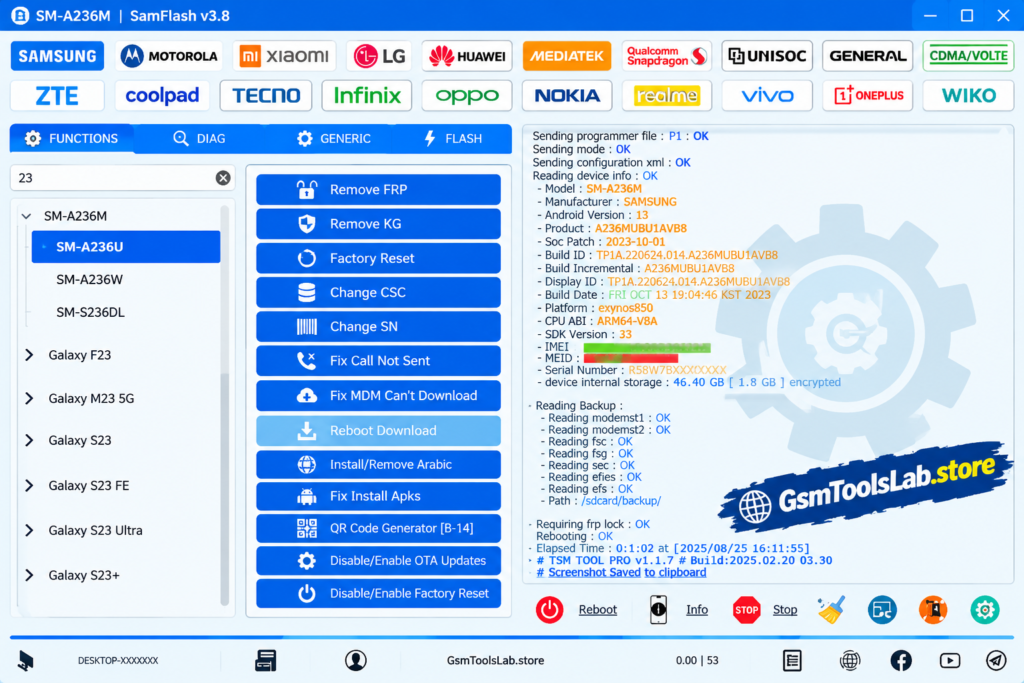
What Is TSM Tool Pro?
TSM Tool is a Windows-based Android servicing utility developed for mobile repair technicians and experienced users. It provides a collection of device maintenance and software servicing functions through supported communication modes such as ADB, Fastboot, EDL, Download Mode, and chipset-specific interfaces.
Depending on the device model, chipset, Android version, and security patch, the available functions may include firmware operations, factory reset, device information reading, FRP servicing, and selected KG/MDM-related tasks. The tool supports several chipset families, including Qualcomm, MediaTek (MTK), Unisoc (SPD), and Kirin (HiSilicon). Not every function works on every phone, so checking model-specific compatibility is important before starting a repair.
Key Features of TSM Tool Pro
All-in-One Android Servicing
TSM Tool brings different mobile servicing functions together in one Windows application. Depending on the supported device, technicians may be able to perform device checks, factory reset, firmware-related operations, FRP servicing, and other software maintenance tasks without switching between multiple utilities for every operation.
ADB and Fastboot Support
Android Debug Bridge (ADB) and Fastboot provide communication methods for supported Android devices. It can use these modes for selected servicing operations, device detection, bootloader-related tasks, and firmware procedures. The phone must support the selected operation, and the required USB drivers and connection permissions must be available.
FRP Servicing
Factory Reset Protection (FRP) is an Android security feature that may request verification of a previously synced Google account after a factory reset. TSM Tool lists FRP-related servicing functions for selected devices. Availability depends on the manufacturer, model, chipset, Android release, security patch, and supported service mode. Use these functions only on devices you own or are authorized to service.
Samsung KG and MDM Functions
The tool’s published updates and feature information include selected Samsung KG and MDM-related servicing operations. These functions can depend on the device’s security configuration, model, Android version, and available connection method. They should not be treated as universal removal options for every Samsung phone or every management policy.
Firmware Flashing and Device Maintenance
Firmware operations can help technicians address certain software problems, including startup failures, boot loops, and corrupted system software. TSM Tool’s available firmware functions vary by supported model and service mode. Always use firmware intended for the exact device variant and verify the package before writing it to the phone.
Qualcomm Chipset Support
TSM Tool lists Qualcomm among its supported chipset families. Selected compatible devices may provide access to servicing functions through EDL or other supported interfaces. EDL access, required authorization, and available operations vary between models, so Qualcomm support alone does not guarantee that every device can be repaired through the same method.
MediaTek (MTK) Support
MediaTek devices may use different service protocols and connection modes depending on their hardware and software configuration. TSM Tool’s published feature information includes MediaTek servicing, with certain updates mentioning MediaTek Protocol V6. Actual compatibility depends on the specific device, protocol, security level, and supported operation.
Unisoc and Kirin Compatibility
The official TSM Tool website lists Unisoc (SPD) and Kirin (HiSilicon) alongside Qualcomm and MediaTek. This broader chipset coverage can be useful for technicians working with different Android manufacturers. However, the availability of individual features should always be checked against the supported device list rather than assumed from chipset support alone.
Device Information and Diagnostics
Device information and diagnostic functions can help technicians identify a connected phone and understand its configuration before selecting a servicing method. Depending on the device and connection mode, available information may differ. Confirm the model number and relevant firmware details before attempting any operation that can modify the device.
User Interface and Workflow
TSM Tool groups multiple servicing options within a Windows application. This can make routine tasks easier to organize, particularly for technicians who regularly work with different device brands and chipsets. Beginners should still understand the selected operation and its risks before using advanced repair functions.
Regular Updates and Model-Specific Improvements
The TSM Tool team publishes updates and tutorials covering selected models, chipsets, and servicing methods. Updates may introduce new device support, change existing procedures, or fix known issues. Before installing an older package, check the official website and update announcements to confirm which edition is currently supported.
What’s New in TSM Tool Pro v2.4.1?
The competitor material supplied for this guide lists the following changes for v2.4.1:
- Added a Remove KG function.
- Added Samsung QR Code support for selected Android 14 devices.
- Added MediaTek Protocol V6 support.
- Added Samsung KG/MDM servicing through selected EDL, ADB, and QR Code methods.
- Addressed the reported “Can’t Download OneClick EDL Mode” MDM issue.
- Added a OnePlus Open diagnostic menu feature.
- Added Xiaomi FRP servicing through Sideload mode.
- Included general improvements and bug fixes.
Supported Brands and Chipsets
- Samsung
- Xiaomi, Redmi, and POCO
- OPPO and Realme
- OnePlus
- Huawei and Honor
- Vivo
- Motorola
- Nokia
- Tecno, Infinix, and itel
Supported Chipset Families
- Qualcomm Snapdragon
- MediaTek (MTK)
- Unisoc (SPD)
- Kirin (HiSilicon)
System Requirements
| Component | Suggested Requirement |
|---|---|
| Operating System | Windows 10 or Windows 11; check the package for older Windows support |
| Processor | Compatible Intel or AMD processor |
| RAM | 4 GB minimum suggested; 8 GB recommended for a smoother workflow |
| Storage | At least 1 GB of available space, subject to package size and extracted files |
| USB Port | Working USB port for device connection |
| USB Drivers | Compatible Android or manufacturer-specific drivers |
| USB Cable | Reliable data cable |
| Permissions | Administrator access may be required for installation or certain operations |
| Internet | May be required for account access, updates, or online services |
Download Information
| Property | Details |
|---|---|
| Tool Name | TSM Tool / TSM Tool Pro |
| Version Discussed | v2.4.1 |
| Platform | Windows |
| Package Format | Reported as a compressed archive by some third-party pages |
| Reported File Size | Approximately 199.71–202.23 MB in the supplied competitor descriptions |
| Extraction Utility | 7-Zip or WinRAR, if the package is compressed |
How to Download and Install TSM Tool
- Visit the official website. Open tsm-tool and check the current download options.
- Confirm the edition. Check whether the available package is the older TSM Tool Pro GUI or the newer TSM Pro Edition.
- Download the installer. Obtain the package from the official source rather than an unknown mirror.
- Check the downloaded file. Scan it with reputable security software and verify any available publisher or checksum information.
- Extract the archive if necessary. If the downloaded package is compressed, use a trusted extraction utility.
- Install the required drivers. Use compatible Android USB or manufacturer-specific drivers for the device you intend to service.
- Launch the application. Follow the official setup instructions and grant administrator permission only when needed.
- Sign in if required. Some functions may require an account, activation, or an online service.
- Connect the Android device. Use a reliable data cable and select the connection mode required by the intended operation.
- Check compatibility before servicing. Confirm the model, chipset, Android version, and security patch, then follow the instructions for that specific function.
Pros and Cons
| Pros | Cons |
|---|---|
| Combines several Android servicing functions | Not every model or operation is supported |
| Lists support for multiple chipset families | Compatibility depends on model and security level |
| Includes selected FRP and KG/MDM functions | Some functions may require an account or online service |
| Provides firmware-related servicing options | Incorrect firmware or procedures can damage software |
| Offers different connection and service modes | USB drivers and correct device modes may be required |
| Publishes tutorials and update information | Older editions may have disabled or outdated functions |
Also Read: TFT Unlock Tool v6.3.1.1 Download Free Latest Version [2026]
Conclusion
TSM Tool Pro is a Windows-based Android servicing utility that brings together selected device maintenance, firmware, and unlocking-related functions. Its support for Qualcomm, MediaTek, Unisoc, and Kirin chipsets makes it relevant to technicians working with different Android devices. However, available operations depend on model compatibility and the installed edition. Before downloading v2.4.1, check the official website for the currently supported version, review the release information, and use a verified package.
FAQ’s
Is TSM Tool free to use?
Availability and licensing may vary by edition and function. Check the official website for current download, account, activation, and service requirements instead of assuming that every feature is free.
Does TSM Tool support Android 14, Android 15, and Android 16?
Published tutorials show selected operations for devices running these Android versions. Support is model-specific and may depend on the security patch, chipset, and service mode.
Does TSM Tool support Qualcomm and MediaTek devices?
Yes, the official website lists Qualcomm and MediaTek among its supported chipset families. Individual operations still depend on the device model and available service method.
Does TSM Tool support Samsung phones?
Samsung appears in the tool’s published servicing information, including selected FRP, firmware, and KG/MDM-related operations. Check the supported model and security requirements before use.
Can TSM Tool Pro remove FRP?
The tool lists FRP servicing for selected compatible devices. Results depend on the device, Android version, security patch, and supported service mode. Use it only on devices you own or are authorized to repair.
Can TSM Tool Pro remove KG or MDM restrictions?
Published feature information describes selected KG/MDM-related functions, including some Samsung servicing methods. These functions are not universal and may depend on the model, security configuration, and service requirements.
Can TSM Pro flash Android firmware?
The tool includes firmware-related operations for supported devices. Always verify the exact model and firmware package before flashing, because an incompatible file can cause boot or software problems.
Is TSM Tool v2.4.1 the latest version?
The supplied competitor pages describe v2.4.1, but the public TSM Tool channel has announced changes to the older GUI and directed users to TSM Pro Edition. Check the official website for the currently supported edition.
What should I do if TSM Tool does not detect my phone?
Check the USB cable and port, install the correct drivers, confirm the phone’s connection mode, and verify that the selected function supports your model. Follow the official troubleshooting instructions before trying another service mode.