BFT Tool v1.8 by BossV Download Fixed Version (100% Working)
When an Android phone has firmware problems, FRP restrictions, screen-lock issues, boot errors, or other software-related problems, switching between different servicing tools can make the repair process difficult. BFT Tool v1.8, also known as Best Flash Tool, brings several Android flashing and servicing functions into one Windows-based utility. It is commonly associated with MediaTek (MTK), Qualcomm, and Unisoc/SPD devices and supports a wide range of Android brands, although available functions depend on the exact model, chipset, firmware, and security level.
BFT Tool v1.8 is mainly used for firmware flashing, supported FRP and screen-lock servicing, factory reset operations, device information, and other software maintenance tasks. Current listings also describe support for Qualcomm, MTK, and Unisoc/SPD workflows, making it useful for mobile repair technicians working with supported Android devices.
What is BFT Tool?
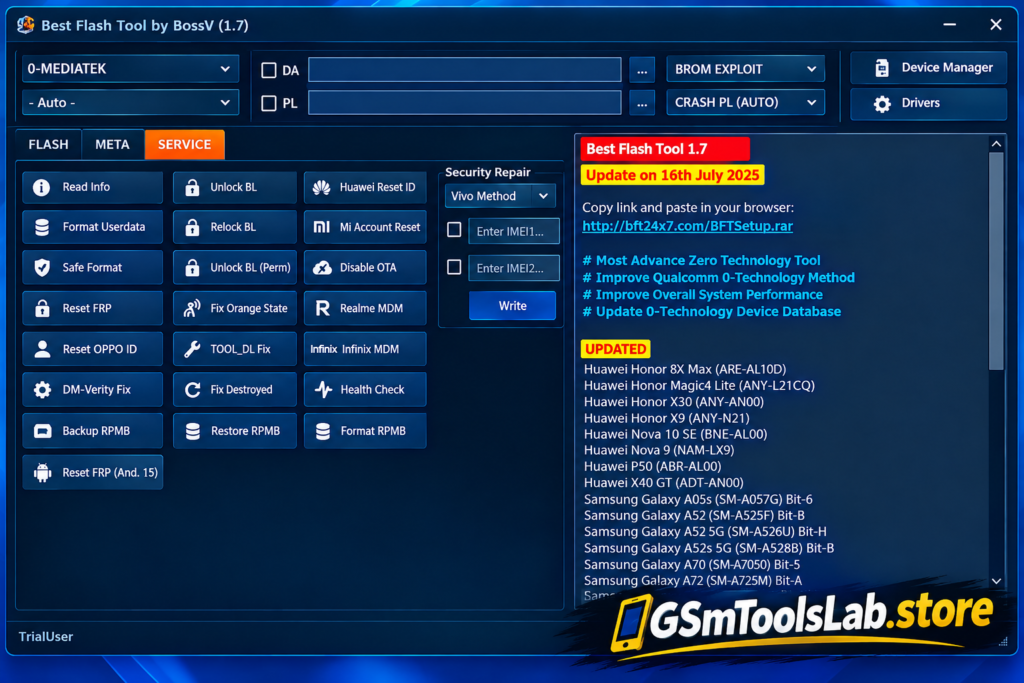
BFT Tool, or Best Flash Tool, is a Windows-based Android servicing application associated with BossV/Miracle Team. The tool provides a centralized interface for common mobile software repair operations across supported MediaTek, Qualcomm, and Unisoc/Spreadtrum devices.
Depending on the device and firmware, BFT Tool v1.8 can be used for firmware flashing, FRP-related servicing, screen-lock operations, factory reset, device information, and chipset-specific maintenance. Its supported workflows include technologies such as MTK BROM/META, Qualcomm EDL, and Unisoc/SPD servicing, while the exact available options vary between models and security versions.
Features of BFT Tool v1.8
Firmware Flashing
BFT Tool supports firmware installation on compatible Android devices. Depending on the chipset, flashing workflows can use formats such as MTK Scatter files, Qualcomm XML-based firmware packages, and Unisoc/SPD PAC files.
FRP and Screen Lock Servicing
The tool includes FRP-related and screen-lock servicing functions for supported devices. Available methods can depend on the chipset and connection mode, including ADB, Meta, Diag, or other supported service interfaces.
MediaTek MTK Support
BFT Tool provides MediaTek servicing functions and can work with supported MTK devices through appropriate service modes. MTK workflows may include BROM, META, firmware flashing, device information, factory reset, and storage-related operations.
Qualcomm Support
Qualcomm devices are another major platform covered by BFT Tool. Supported workflows can include Qualcomm EDL communication, Firehose-based flashing, XML and Patch XML firmware files, device information, and selected servicing operations.
Unisoc / SPD Support
The tool also supports selected Unisoc, formerly Spreadtrum or SPD, devices. Depending on the model, technicians may work with PAC or CFG firmware packages for supported flashing and servicing operations.
Factory Reset and Safe Format
BFT Tool provides reset and formatting functions for compatible devices. These options can help with certain software-maintenance tasks, but users should always back up important information before performing operations that erase user data.
IMEI and Device Information
Some BFT Tool workflows provide IMEI and device-information functions on supported models. Any identifier-related repair should only be performed on devices you own or are authorized to service and according to applicable rules.
RPMB Backup and Restore
RPMB, or Replay Protected Memory Block, is used for protected storage on compatible mobile hardware. BFT Tool listings describe backup and restore functions for supported devices and chipsets, which can be useful during advanced servicing procedures.
Supported Brands and Chipsets
BFT Tool is commonly listed for Android devices from brands such as Samsung, Xiaomi, Redmi, POCO, OPPO, Vivo, Realme, Huawei, Motorola, Nokia, Infinix, Tecno, itel, and ZTE. Its main chipset coverage includes MediaTek (MTK), Qualcomm, and Unisoc/Spreadtrum (SPD).
However, brand support does not mean every model is compatible with every function. Before flashing or performing a servicing operation, check the exact model number, chipset, firmware build, security level, and required connection mode.
What’s New in BFT Tool v1.8?
- Improved Qualcomm servicing and flashing support.
- Updated MTK, Qualcomm, and Unisoc/SPD compatibility.
- Firmware flashing through supported chipset-specific methods.
- Improved auto and universal servicing functions.
- Expanded model compatibility in current v1.8 listings.
- Updated FRP and screen-lock servicing functions for supported devices.
- Improved device model search and servicing workflow.
- Support for additional Android models and software-maintenance operations.
Current BFT v1.8 listings describe improved Qualcomm functionality and expanded device support, with some sources claiming support for 250+ additional models. Because these figures and available functions can vary between releases and builds, compatibility should be checked against the target device before starting a repair.
System Requirements for BFT Tool v1.8
| Requirement | Specification |
|---|---|
| Operating System | Windows 7, 8, 10, or 11 (32-bit / 64-bit) |
| Processor | Intel or AMD Dual-Core or higher |
| RAM | 4 GB minimum, 8 GB recommended |
| Storage | At least 500 MB free space |
| USB Drivers | Required Android, MTK, Qualcomm, or Unisoc/SPD drivers |
| USB Port | Working USB 2.0 or USB 3.0 port |
| Additional | Compatible USB cable and correct device connection mode |
BFT Tool v1.8 Download Information
| Information | Details |
|---|---|
| Tool Name | BFT Tool / Best Flash Tool |
| Version | V1.8 |
| Developer / Team | BossV / Miracle Team |
| Platform | Windows PC |
| Chipset Support | MediaTek, Qualcomm, Unisoc/SPD |
| File Type | ZIP / RAR / Setup package |
| License | Free |
How to Download, Install & Use the BFT Tool?
- Download the BFT Tool v1.8 package from a trusted source.
- Extract the ZIP or RAR archive if the setup is compressed.
- Install the required Android, MediaTek, Qualcomm, or Unisoc/SPD USB drivers.
- Open the extracted BFT Tool folder and run the setup or executable as Administrator.
- Launch BFT Tool and allow the Windows interface to load.
- Select the appropriate chipset, device model, or servicing function.
- Connect the Android phone using a compatible USB cable and the required service mode.
- Follow the instructions shown in the tool’s log or operation window.
- Start the selected operation and wait until the process is completed.
- Restart the device when required and verify that the servicing operation was successful.
Fix BFT Tool “Failed to Check for New Version” Error
If BFT Tool displays “Failed to check for new version” or an Internet-related error, the application may be unable to reach its update or authentication service. First, check that your internet connection is working correctly. Then make sure Windows Firewall, a proxy, VPN, or other security software is not blocking the application’s connection.
- Check your internet connection.
- Restart the BFT Tool and try again.
- Temporarily check whether the firewall or security software is blocking the application.
- Disable any unnecessary VPN or proxy connection.
- Run the tool as Administrator.
- Make sure you are using a compatible and trusted BFT Tool build.
Pros & Cons
| Pros | Cons |
|---|---|
| Supports MediaTek, Qualcomm, and Unisoc/SPD devices | Not every Android model is supported |
| Firmware flashing for supported devices | Correct USB drivers are required |
| FRP and screen-lock servicing options | Firmware files may need to be downloaded separately |
| Multiple Android servicing functions in one tool | Features vary by model, chipset, and firmware |
| Qualcomm, MTK, and SPD flashing workflows | Advanced functions require technical knowledge |
| Device information and software repair functions | Incorrect flashing can cause boot or software issues |
| Windows-based interface | Some operations depend on the device security level |
Also Read: SK Unlocker Tool V23 Download Setup 100% Working [Tested]
Conclusion
BFT Tool v1.8 is a Windows-based Android servicing utility that brings firmware flashing, chipset servicing, FRP-related operations, screen-lock functions, factory reset, device information, and other repair options into one interface. Its commonly listed support for MediaTek, Qualcomm, and Unisoc/SPD makes it relevant for technicians working with different Android platforms.
Before using BFT Tool, always verify the exact device model, chipset, firmware, drivers, and supported operation. Compatibility can differ between devices and security versions, so the correct servicing method should be selected before starting the process.
FAQ’s
Is BFT Tool free to use?
Current BFT Tool listings describe v1.8 as a free Windows-based servicing utility without a separate hardware dongle requirement for its software functions. Specific builds and operations can have their own requirements.
Which chipsets does BFT Tool support?
BFT Tool v1.8 is commonly associated with MediaTek (MTK), Qualcomm, and Unisoc/Spreadtrum (SPD) Android devices. The available servicing functions depend on the particular model and firmware.
Can BFT Tool remove FRP?
BFT Tool includes FRP-related servicing functions for supported Android devices. Whether a particular FRP operation works depends on the device model, chipset, firmware, and security configuration.
Does BFT Tool support Qualcomm devices?
Yes. Qualcomm is one of the main chipset platforms associated with BFT Tool. Supported workflows can include Qualcomm EDL and Firehose-based firmware servicing on compatible devices.
Does BFT Tool support all Android phones?
No. BFT Tool does not guarantee support for every Android phone. Compatibility depends on the exact model, chipset, firmware version, security level, drivers, and available servicing method.
Why is BFT Tool not detecting my phone?
Common causes include missing USB drivers, an incorrect connection mode, a faulty USB cable or port, or unsupported device hardware. Install the correct chipset drivers, check the required service mode, and confirm that the phone is compatible with the selected BFT function.
What causes the BFT Tool “Failed to Check for New Version” error?
The error can occur when BFT Tool cannot communicate with its update or authentication service. Check the internet connection and review VPN, proxy, firewall, or Windows security settings that may be blocking the application’s network access.