
ASUS Flash Tool 3.2.10 Free Download Setup for Windows [2027]
Is your ASUS phone stuck on the logo, restarting again and again, or dead after a failed update? This problem is called a boot loop, and it can stop a repair job in the middle. The ASUS Flash Tool is a free Windows program that helps fix this kind of software problem. It writes official stock firmware to your phone through Fastboot mode. People mostly use it on ASUS ZenFone phones, and on some ROG Phone models too.
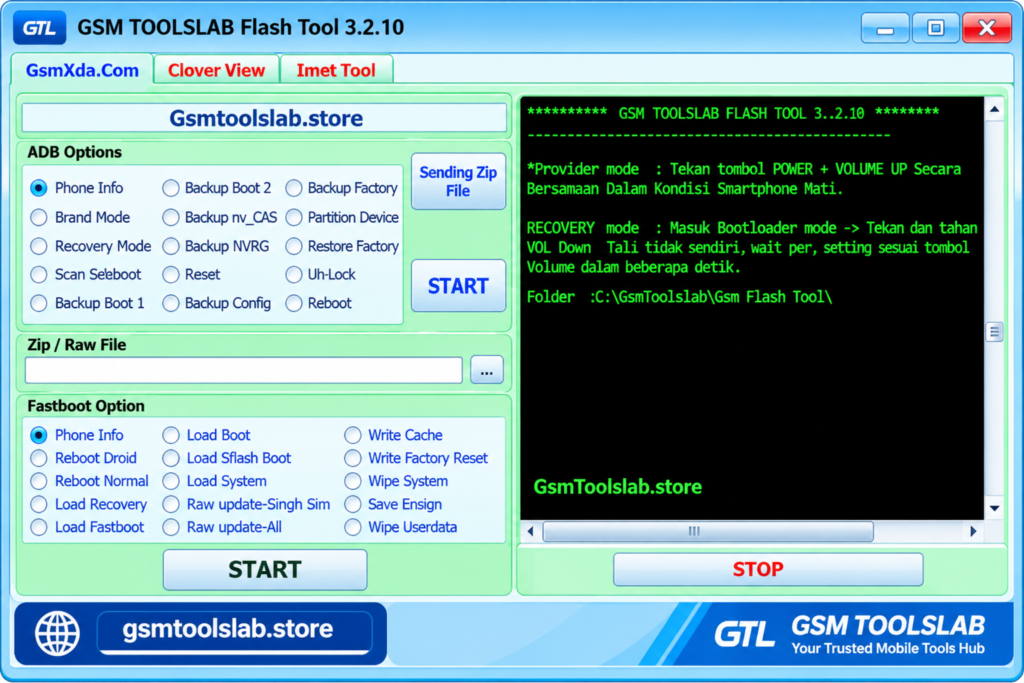
What Is the ASUS Flash Tool?
The ASUS Flash Tool, often shortened to AFT, is a Windows application for installing official firmware on ASUS Android phones. Firmware is the main software that makes your phone run. When that software gets damaged, the phone may freeze on the logo, restart forever, or refuse to turn on. The tool talks to your phone in Fastboot mode. Fastboot is a special start-up screen that lets a computer send repair files to the phone. After you pick a firmware file that matches your exact model, the tool writes it to the phone and restarts it.
Why Do ASUS Phones Need Flashing?
Phones fall into software trouble for simple reasons. A power cut during an update, a wrong custom ROM, a full storage drive, or a bad app can all damage the firmware. When the damage is only in software, it is called a soft brick, and flashing clean stock firmware is the usual cure.
Repair shops in busy phone markets such as the United States, United Kingdom, Canada, Australia, Germany, India, Pakistan, Indonesia, and Brazil see these cases every day. A free flashing tool saves money because it works without a box or a dongle.
Features of the ASUS Flash Tool
Stock Firmware Flashing
This tool installs a firmware file made for your phone’s exact model and variant. A wrong file can create new problems, so always match the model name first. Firmware packages are big. For ROG Phone models, they range from about 2.7 GB to more than 5 GB.
Boot Image Flashing
The tool can flash a boot image through Fastboot to repair start-up faults. This helps when the phone cannot get past the logo.
Update and Downgrade
You can move to a newer or an older Android version if the firmware file allows it. A downgrade may need a full data wipe.
Custom ROM Support
This tool supports certain custom firmware workflows. Always check that a ROM fits your phone before you flash it.
USB Driver Support
ASUS USB drivers and ADB drivers help Windows see your phone. Without them, the tool cannot find your device.
Backup and Restore
Some builds can back up and restore apps. This is handy, but it does not replace a full backup of your photos and files.
What’s New in ASUS Flash Tool 3.2.10?
- Better flashing for supported ASUS models.
- A cleaner screen for beginners and technicians.
- USB driver support for easier device detection.
- Support for newer ASUS phones, as some websites claim. Always test with your own model.
ASUS Flash Tool Supported Devices and Modes
| Group | Details |
|---|---|
| Phones | ASUS ZenFone models, plus some ROG Phone models |
| Mode | Fastboot mode (shows as “ASUS Bootloader Interface” in Device Manager) |
| Firmware | Official stock firmware, often a RAW image, matched to your model |
| Chipsets | Snapdragon (Qualcomm) and MediaTek models, depending on version |
| Connection | USB cable; a USB 2.0 port works best |
Some newer ROG Phone models use a script file called flashall_AFT instead of the windowed tool. Firmware names also carry region tags. WW means worldwide, and CN means China. Pick the one that matches your phone.
ASUS Flash Tool 3.2.10 Download Information
| Detail | Value |
|---|---|
| Tool Name | ASUS Flash Tool |
| Version | 3.2.10 |
| File Type | ZIP or RAR |
| File Size | 107.7 MB |
| File Password | None |
| Platform | Windows 7, 8, 10, 11 |
ASUS Flash Tool System Requirements
| Requirement | Details |
|---|---|
| Operating System | Windows 7, 8, 10, or 11 |
| RAM | 2 GB minimum |
| Storage | 100 to 200 MB for the tool, plus 10 GB or more free for firmware |
| Drivers | ASUS USB, ADB, and Fastboot drivers |
| Other | A good USB cable and a phone charged to at least 50% |
How to Download and Install the ASUS Flash Tool
- Download the ASUS Flash Tool package from gsmtoolslab.store or from a trusted source.
- Extract the archive into its own folder.
- Scan the files with updated antivirus software before opening them.
- Install the ASUS USB, ADB, and Fastboot drivers.
- Run the setup file, or the program, as administrator.
- Download the stock firmware for your exact phone model.
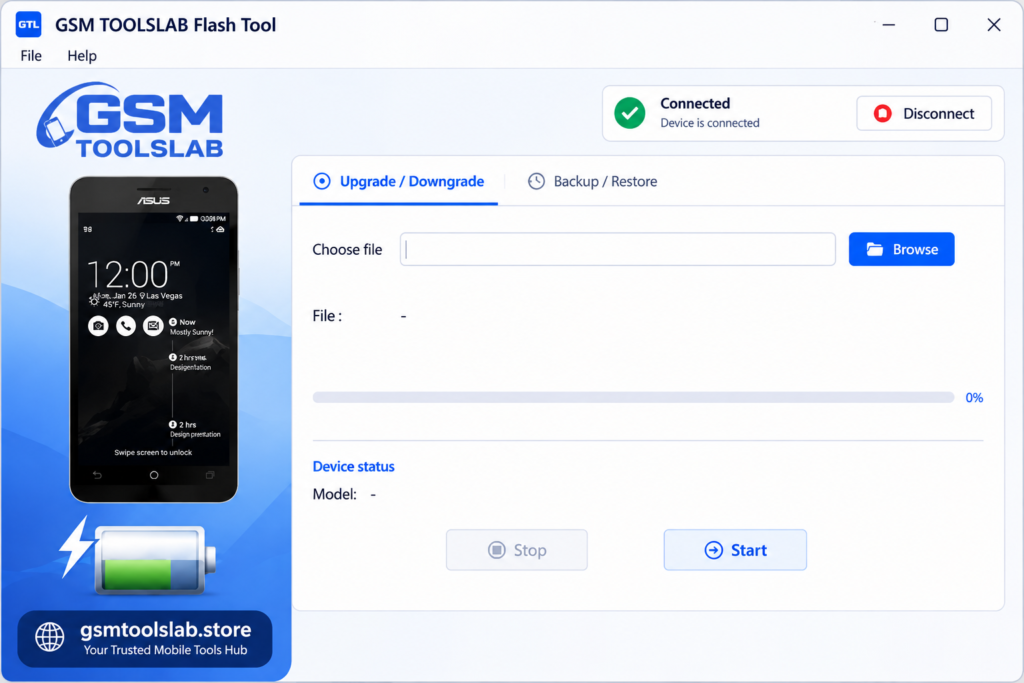
How to Use the ASUS Flash Tool Step by Step
- Turn the phone off completely.
- Hold Volume Up and Power to enter Fastboot mode. The keys can differ by model.
- Connect the phone to a USB 2.0 port on your PC with a good cable.
- Open the program and check that it sees your phone.
- Click Browse and select the firmware file.
- Check that the device and firmware details match.
- Click Start and wait. Do not touch the cable or the phone.
- When the tool finishes, let the phone restart. Then finish the Android setup.
The first start after flashing can take several minutes. This is normal.
Common ASUS Flash Tool Errors and Easy Fixes
The tool cannot find my phone. Open Device Manager and look for a yellow warning icon. Reinstall the ASUS USB driver, then try a new cable or another USB 2.0 port.
The tool asks for a ZIP file, but I have a RAW file. Some users on the ASUS ZenTalk community report this with older ZenFone models. Check that your tool version and firmware package match before you rename anything.
The flash stops halfway. Use a stable cable, keep the battery above 50%, and do not use a USB hub.
The phone is fully dead. A Fastboot-based tool needs a phone that can reach Fastboot. On some Snapdragon ROG Phone models, a hard brick shows up in Windows as Qualcomm HS-USB QDLoader 9008. That is EDL mode, and it needs other tools, such as QFIL.
Pros and Cons
| Pros | Cons |
|---|---|
| Simple Windows screen | Works only on selected ASUS phones |
| Flashes official stock firmware | Flashing erases user data |
| Helps with boot loops and failed updates | Wrong firmware can cause damage |
| Needs no box or dongle | Source and version details are often unclear |
| Light on PC resources | Cannot fix hardware faults |
ASUS Flash Tool vs Other Flashing Tools
- SP Flash Tool: Built for MediaTek phones in general, not just ASUS.
- QFIL: Used for Qualcomm phones in EDL mode, often for deep repairs.
- Mi Flash Tool: Made for Xiaomi, though some guides use it for ASUS EDL work.
- ASUS ZenFone Flash Tool: A close cousin that mostly covers ZenFone phones.
For a ZenFone that still reaches Fastboot, AFT is the easiest first step.
Conclusion
The ASUS Flash Tool 3.2.10 is a free, light Windows program for flashing stock firmware on ASUS ZenFone and selected ROG Phone models. It helps fix boot loops, repair failed updates, and move Android up or down through Fastboot mode. Before you start, install the right drivers, download firmware for your exact model, and back up your data. Used with care, the ASUS Flash Tool gives many software-bricked phones a second life.
FAQ’s
What is the ASUS Flash Tool used for?
It is used to flash stock firmware on ASUS phones. Common jobs are fixing boot loops, repairing failed updates, and upgrading or downgrading Android.
Are the ASUS Flash Tool and the ASUS ZenFone Flash Tool different?
Yes. The ZenFone tool mostly covers ZenFone phones. The other one covers selected ZenFone models and some other ASUS phones.
Will the ASUS Flash Tool erase my phone data?
Yes, flashing can erase your data. Back up your files before you start.
Why is my phone not detected?
Install the ASUS USB driver, try another cable or USB 2.0 port, and put the phone in Fastboot mode. Then check Device Manager for errors.
Can it fix a bricked ZenFone?
It can help with a soft brick if the phone reaches Fastboot mode and you use matching firmware. It cannot repair hardware damage.
Which firmware file does the tool need?
It needs official stock firmware made for your model and region. This is often a RAW image. The exact file type depends on your tool version and phone.
Is ASUS EZ Flash the same thing?
No. ASUS EZ Flash is a BIOS update tool for ASUS motherboards. It does not work on phones.