3uTools V9.12 Download Latest Version for Windows [2027]
Managing an iPhone or iPad from a Windows computer can become difficult when you need to check battery health, transfer photos, create backups, or manage iOS firmware. 3uTools brings several iOS device management functions into one desktop application. It helps users view device information, manage media files, back up data, explore firmware options, and access additional utilities through a single interface.
What Is 3uTools?
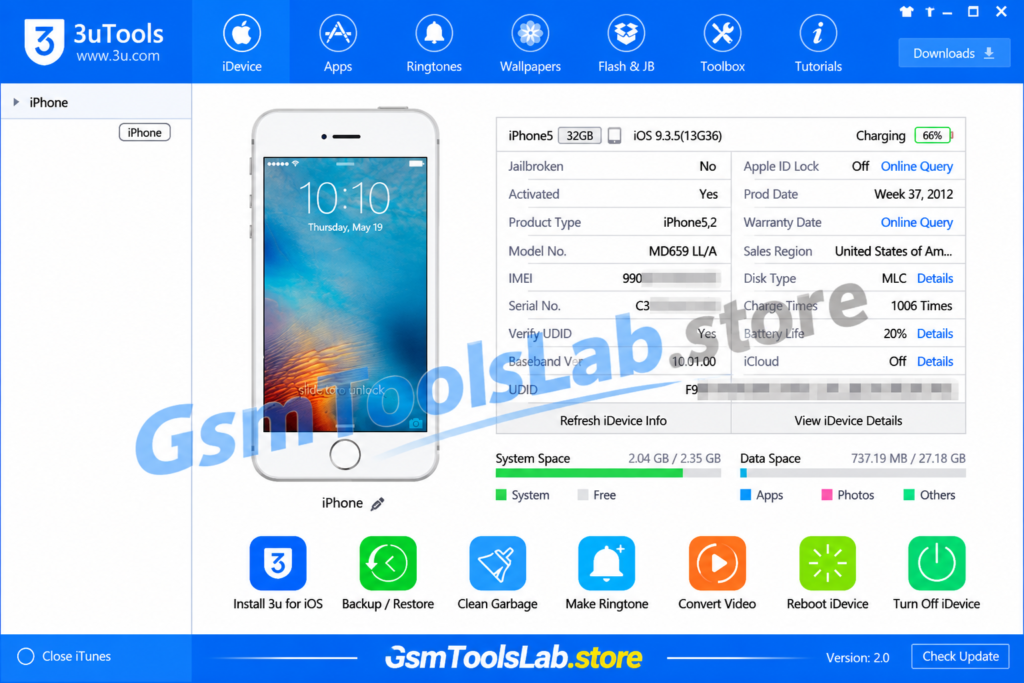
3uTools is a Windows-based iOS device management application designed for working with Apple devices, including iPhone, iPad, and iPod touch. After connecting a supported device through USB, users can access information such as the device model, iOS version, battery details, storage, and other available system information.
The software combines several functions, including file management, data backup and restore, firmware downloading, device flashing, app management, and customization utilities. It can also help users manage photos, videos, contacts, music, and ringtones from a computer.
Key Features of 3uTools
Device Information
3uTools displays useful information about a connected iPhone or iPad. Depending on the device and available data, users can check the model, serial number, UDID, iOS version, storage capacity, battery condition, and other hardware details. This information can help technicians and second-hand device buyers inspect an iPhone before servicing or purchasing it.
Device Management
The application provides a central place to manage supported iOS device content. Users can import, export, organize, or remove photos, videos, music, contacts, and other available files. This makes everyday data management easier without switching between several desktop applications.
Flash and Firmware Management
3uTools includes firmware-related utilities that help users find compatible iOS firmware packages and perform supported flashing operations. It provides firmware information and options for different device models.
Firmware availability and installation depend on Apple’s signing status, device compatibility, and the selected flashing method. Always confirm the exact model before starting a firmware operation.
iDevice Backup and Restore
Users can create backups of supported device data and store them on a computer. The backup and restore options can help protect important information before performing maintenance or updating a device.
File System and Media Access
The software provides file and media management options for connected iOS devices. Users can transfer supported photos, videos, music, and other accessible content through a USB connection.
App Installation and Management
3uTools offers application management features for supported iOS devices. Users can manage available apps and access app installation options through the desktop interface.
Ringtone Maker
The built-in ringtone utility helps users create custom ringtones from supported audio files. You can select an audio track, choose the required section, and prepare it for use on a compatible iPhone.
Battery Health Monitoring
Battery information is useful when checking an iPhone’s condition, especially before buying a second-hand device. 3uTools can display available battery details, including health-related information and charge-cycle data when supported by the device.
Screen Recording and Real-Time Screen
The available screen tools help users view or record supported iPhone and iPad activity on a computer. These functions can be useful for tutorials, demonstrations, troubleshooting, and presentations.
3uAirPlayer
3uAirPlayer is a separate utility from the 3uTools product family. It allows supported devices to mirror their screen to a computer or compatible display. The official download page lists Windows V6.0.7, dated August 25, 2026, along with mobile app options.
What’s New in 3uTools V9.12?
The official download page lists Windows V9.12, dated October 23, 2026. The available product information highlights the following areas of functionality:
- Updated Windows desktop release.
- Device information and verification options.
- iOS firmware download and flashing utilities.
- Backup and restore functions.
- Improved access to media and file management tools.
- App management and installation options.
- Additional utilities for device maintenance and customization.
- Separate downloads for supported Windows, macOS, Linux, and mobile platforms.
How to Download 3uTools?
Follow these steps to download the Windows setup package:
Step 1: Visit the official 3uTools website: https://www.3u.com/.
Step 2: Find the Windows download section.
Step 3: Select the appropriate 64-bit or 32-bit installer for your computer.
Step 4: Click the Download option and wait for the setup package to finish downloading.
Step 5: Locate the downloaded installer in your computer’s Downloads folder.
Step 6: Check the downloaded file before opening it, then continue with the installation process.
How to Install 3uTools on Windows?
After downloading the setup package, follow these installation instructions:
Step 1: Open the downloaded 3uTools installer.
Step 2: If Windows displays a User Account Control prompt, review it and select Yes if you trust the installer.
Step 3: Follow the setup wizard instructions.
Step 4: Select the installation location if the installer provides that option.
Step 5: Click Install and allow the setup process to complete.
Step 6: Select Launch or open the application from the Windows desktop or Start menu.
Step 7: Connect your iPhone or iPad using a working USB cable.
Step 8: Unlock the device and select Trust This Computer if the iPhone displays the trust prompt.
How to Use 3uTools V9.12?
After installation, you can use the application to manage a connected Apple device. Follow these basic steps:
Step 1: Launch 3uTools on your Windows computer.
Step 2: Connect your iPhone, iPad, or supported iPod touch using a USB cable.
Step 3: Unlock the device and approve the computer connection when prompted.
Step 4: Open the device information section to review the available model, iOS version, storage, and battery details.
Step 5: Select the required section, such as Apps, Photos, Files, or Backup/Restore.
Step 6: For firmware operations, check the exact device model and available firmware before selecting a flashing option.
Step 7: Create a backup before performing any operation that could erase or modify device data.
Step 8: Wait for the selected task to finish and avoid disconnecting the device during an active operation.
System Requirements
The following items are needed for basic Windows use:
| Requirement | Details |
|---|---|
| Operating System | Compatible Windows PC |
| Architecture | Windows 32-bit or 64-bit installer |
| Device | Supported iPhone, iPad, or iPod touch |
| USB Connection | Working USB port and compatible cable |
| Internet | Required for online resources and firmware downloads |
| Storage | Enough free space for installation, downloads, and backups |
3uTools Download Information
| Details | Information |
|---|---|
| Tool Name | 3uTools |
| Windows Version | V9.12 |
| Release Date | October 23, 2026 |
| Platform | Windows |
| Architecture | 32-bit and 64-bit |
| Category | iOS Device Management |
| Main Functions | Device Information, Backup, Restore, Firmware, File Management |
| Developer Website | 3u.com |
| File Size | Check the official download package |
| File Password | Not specified by the official website |
Pros and Cons of 3uTools
Pros:
- Combines several iPhone and iPad management functions in one desktop application.
- Provides device information and battery-related details.
- Supports file, photo, video, and music management.
- Includes backup and restore options.
- Offers firmware-related tools for supported iOS devices.
- Provides additional utilities for ringtones, screen recording, and device management.
Cons:
- Requires a computer and a working USB connection for most desktop functions.
- Advanced features depend on the device model and iOS version.
- Firmware flashing and restoring can result in data loss.
- Some functions may not work with every device or firmware version.
- It is not an Android device servicing application.
- Users should verify installers and avoid untrusted download sources.
Also Raed: Chimera Tool V48.16.1331 Download Latest Version for Windows [2027]
Conclusion
3uTools is a useful iOS device management application for users who want to manage iPhones, iPads, and supported iPod devices through a Windows computer. Its features include device information, file transfer, backup and restore, firmware management, app utilities, and ringtone creation.
For everyday iOS management and selected servicing tasks, 3uTools brings several useful options into one interface. However, firmware operations and advanced functions require care because compatibility depends on the device and iOS version.
FAQ’s
Is 3uTools safe to use?
Download the installer from the official 3uTools website and verify the file before installation. No third-party utility should be treated as risk-free. Create a backup before using firmware, restore, or other advanced functions.
Which devices are compatible with Tools?
The application is designed for supported Apple devices, including iPhone, iPad, and iPod touch. Available features depend on the device model, iOS version, and connection status.
Can 3uTool back up personal information?
Yes. It provides backup and restore options for supported device data. You can store available backup files on your computer and use the restore function when needed. Check the backup contents before relying on it as your only copy.
What is 3uAirPlayer?
3uAirPlayer is a separate screen-mirroring utility from the 3uTools product family. It can mirror a supported iPhone or iPad screen to a compatible computer or display. Check its platform and version requirements before installing it.
Which iOS firmware versions can 3u flash?
The available firmware options depend on the exact Apple device and Apple’s signing status. The application can display compatible firmware options, but it cannot make an unsigned iOS version installable when Apple no longer signs it.
Is uTools free to download?
The official website provides Windows downloads for 3uTools. Review the official download page for the current installer and any applicable terms before installation.
Does 3uTools work on Android devices?
No. The desktop device-management functions discussed in this article are designed for Apple devices. 3uTools is not an Android flashing or servicing utility.
Does 3uTools require an Apple ID?
Many desktop management functions can be accessed after connecting a device without entering an Apple ID into the application. However, Apple ID authentication and Activation Lock remain controlled by Apple’s security system. 3uTools should not be treated as an Activation Lock removal tool.